
• Skip to main content
  • Skip to primary sidebar
  • Home
TechTidBit – Tips and advice for small business computing – Tech Experts™ – Monroe Michigan

TechTidBit - Tips and advice for small business computing - Tech Experts™ - Monroe Michigan

Brought to you by Tech Experts™

Tips To Optimize Your Computer’s Performance

November 24, 2009

Has your computer significantly slowed down since you first bought it? Does it seem slower than ever? Is something wrong? These are questions and concerns of many users when it comes to their computer systems.

Almost every day I encounter clients who have these complaints, so I’ve put together a few pointers and best practices to keep your systems running in tip top shape!

All of these tips use system tools that are built right into your Windows operating system, whether you’re running Windows 95, 98, ME, NT, XP, Vista, or Windows 7.

They may vary in location, as well as the look and feel of the applications, but overall they all are designed to do the same things.

Clean Up Disk Errors
Every time you improperly shut down your computer, a program crashes, or a power outage happens, your computer creates errors on the hard disk.

Over time, these errors can cause the system to read and write data to the hard drive slower, hence slowing your entire system down. For this, Windows has built in what’s called a disk check.To run disk check simply:

1. Click START > My Computer
2.Choose the drive you want to run the check on, and RIGHT click it, and choose PROPERTIES.
3. In the PROPERTIES box, click the TOOLS tab. In the errorchecking section, press the CHECK NOW button.
4. Choose both automatically fix file system errors, and scan for and attempt to recover bad sectors, and proceed by clicking START.

Delete Temporary Files
Your computer picks up and stores temp files all the time, while you browse the web, work in programs such as Microsoft Word, and even when installing new programs.

Over a period of time, these temporary files can really bog your system down, so you have to be sure to clean them up on a regular basis.

For this, Windows has what’s called Disk Cleanup.

To run disk cleanup simply:
1.Go to START > My Computer
2.Choose the drive you want to run the cleanup on, and RIGHT click it, and choose PROPERTIES.
3.In the properties box, click DISK CLEANUP.

Disk cleanup will calculate how much space you can free up on your hard drive.

After it runs its scan, the disk cleanup dialogue box will show a list of files you can remove from your computer.

The list will include: Downloaded Program Files, Temporary Internet Files, Microsoft Error Reporting Temp Files, Office Setup Files, Recycle Bin, and Thumbnails.

4.From here, go ahead and check all the boxes, and click OK.
5.Disk cleanup will now remove those selected files, and close when it has completed and you are done!

Organize Your Data
Over time, as we install new programs, save new files, documents, videos, pictures, music, etc. data can become what is known as fragmented.

Fragmented files are a huge cause of slow performance. For this, Windows built in the Disk Defragmenter.

Disk Defragmenter analyzes all your files, and organizes them nice neatly in the same locations, rather than randomly spread across your file system.

You should run this utility at least once a month at least to prevent files from becoming badly fragmented.

To run disk defragmenter you simply:
1.Click START > My Computer
2.Choose the drive you want to defrag, and RIGHT click it, and choose PROPERTIES.
3.In the properties box, click the TOOLS tab, and then in the defragmentation section, click DEFRAGMENT NOW.
4.In the disk defragmentation box, select the volume you want to scan, and click defragment. (Typically this would be your C: drive )

Follow these three easy tips, and your computer will stay running in tip top shape for as long as you have the system. Remember it is important to keep regular maintenance on your computers, just as you do on most all mechanical and/or electrical devices.
Can Your Computers Prevent The Flu?

November 24, 2009

Three things you can do right now with your technology that may prevent the flu pandemic from affecting your company’s productivity.

The Centers for Disease Control (CDC) predicts that 1/3 of the US population will catch the flu this year, with the average employee missing between two and four weeks of work. This pandemic has the ability to cripple many small- to medium-sized businesses, according to disaster recovery experts.

But believe it or not, how you deal with your computers can actually prevent the flu from affecting your business productivity.

When most business owners think about the impact of a pandemic illness, the first scenario is often most or all employees calling in sick. Realistically, the possibility of a large number of your employees becoming ill at the same time is pretty low.

Your business is much more likely to feel the impact from the response and containment measures organizations will use to minimize an outbreak. Consider these senarios:

Employees can’t come to the office because they or a family member may have been exposed to the virus, but aren’t necessarily ill.

Or, an employee can’t come to work because their child is ill, or their school or daycare service has closed for a week to ten days to contain an outbreak.

In each of these scenarios, your employees are healthy, but have pressing personal demands that conflict with showing up at work.

Here are several ways you can use your technology investment to mitigate some effects of a swine flu outbreak both for ill employees, and employees who can’t make it to work because of other issues.

Do Everything You Can To Slow The Spread Of The Flu
The flu spreads through personal contact like shaking hands, touching a keyboard or mouse used by an infected coworker, and through the air by coughing and sneezing.

So watch who you touch and use disinfectant wipes to clean your workspace including the keyboard and mouse before and after you use them.

You can also reduce the amount of people who need to touch your computer equipment by using a program like our Experts Total Support service, where the technician can work on your system remotely.

Stay In Touch Electronically
Timely communication may be one of the keys to keeping your employees from becoming ill. Consider setting up an email list service so that employees can notify one another if they or a family member has become ill. You may even consider using the email to text message capability most cell phone providers offer to alert employees if another staff member is ill, or will be out caring for a family member.

Prepare For Employee Absence With Remote Access
No matter how hard you try to prevent it, you may still have some of your staff out sick at the same time. While no one with the flu is going to do much besides lie in bed, many employees will work part time from home if they have access to their office computer.

Some doctors believe this could actually hasten their recovery by eliminating boredom. So, setting up a way that your employees can remote into their computer from home helpsyou both.

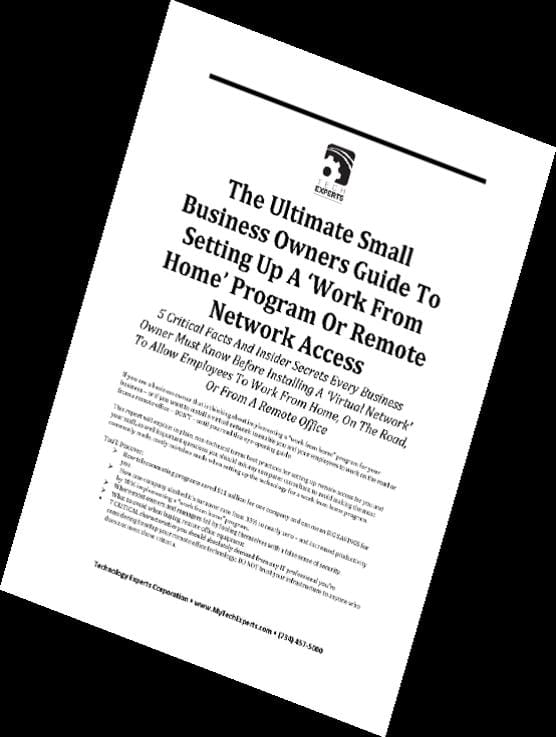
We’ve compiled a free report to help you address some of these issues. “The Ultimate Small Business Owner’s Guide To Setting Up A ‘Work From Home’ Or Remote Network Access System” includes all of the information you need to set up a work from home program that is both useful for employees, and safe for your business.

For a free copy of this report, call the office at (734) 457-5000, or email “info@expertsmi.com.”


Track Flu Trends On Google

November 24, 2009

Google Flu Trends provides near real-time estimates of flu activity for a number of countries and regions around the world based on aggregated search queries. Some of these estimates have been validated through comparison with official historic influenza data from the relevant country or region. Countries with estimates that have not been validated are labeled as experimental. www.google.org/flutrends

Internet Monitoring Software Can Boost Office Productivity

November 24, 2009

It goes without saying the Internet is a very useful tool that most of us use on a daily basis at work. I have a number of clients who have software applications that are web based and require all employees to have web browsers open and active all day long.

The Internet can be a very useful place. It gives you the ability to find just about anything you could ask for. It can also lead to distractions and temptations. Say you want to check the final score of the game you were watching last night.

One click of the mouse and you can have all the latest sports scores and stories. Worse yet, the IM chatting (instant messaging) and Facebook browsing can fill your day as opposed to the work you are getting paid to do.

As a result, there are software packages available that can monitor and report what someone has been looking at, or looking for, on the Internet.

More and more companies are concerned about what their employees use the Internet for, and more importantly, what they are doing while they are “on the clock”.

These software packages, such as Spectorsoft, can be loaded onall computers on a network, and gives  business owners the ability to record emails, chats, IMs, websites, web searches, programs run, keystrokes typed, files transferred, screen snapshots.

Literally everything that is done on that computer can be reviewed at a moment’s notice at anytime.

Some may think that this is an invasion of privacy, but please keep in mind: Private things are best left at home.

Websites such as Facebook and MySpace can be wrought with viruses and can cause a problem on a company’s network.

I’ve used these types of monitoring programs to review screenshots once a problem has occurred to determine the cause of the problem, and see exactly what the user was doing when the infection occurred. Beyond reporting, these software packages retain the user-level investigative tools that a lot of clients have grown to rely on.

If you detect a problem or suspect a specific employee is the main culprit of abuse, you can dig deeper and review every detail of the computer and Internet activity to gather the evidence you need.

The level of detail is so precise that you can see what an employee does each and every second, and even include screen shots of the activity whenever the employee is on a certain website, or logged into a certain chat program.

Not only can you record and monitor Internet activity, record instant message chats, and websites visited, but you can also block porn, other adult content or other web sites that aren’t work related.

Legally speaking, to install monitoring software on a computer, you have to meet one of two requirements: You have to own the computer, or you have to notify all users that they’re being monitored.

If you feel you need to deploy such a tool on your network, do not hesitate to call Tech Experts, and we can recommend the right software package for you.

Automatic Updates: Be Safe by Being Secure

October 24, 2009

We are all well aware of how  popular the Microsoft Windows operating system has become. Not only is this  operating system popular for the business world, the vast majority of home computers run this operating system in various forms.

This popularity can make you a prime target for hackers and other criminals looking for a way to take advantage of a security risk in the operating system. Microsoft is keenly aware of this issue and takes steps almost instantly to make security patches and updates available for you, or your IT professional, to download and install.

Depending on how you have the automatic updates setting configured, these updates may or may not download and install themselves automatically, or you may have to initiate the process yourself manually.

While this feature is nice, most IT pros would rather pick a time to download and install these updates in a controlled situation, where the loading process can be monitored for any problems or issues that may arise.

The automatic updates utility can be accessed through the control panel. Once you open up automatic updates, you have the option there to select automatic updates, but even if you have automatic updates turned on, it is always a good idea to visit Microsoft’s update website occasionally and have the update center scan your computer to check and make sure you have all the latest updates available.

Microsoft also has a very thorough program called “Microsoft Baseline Security Analyzer 2.1.” This tool written for IT professionals provides a streamlined method of finding common security misconfigurations.

This tool allows our technicians to quickly scan your server or workstations and identify any missing security patches and provides a quick link to the supporting white paper that will explain to the technician exactly what security issue is being addressed with the particular security patch. Once enough of these security patch releases become available, Microsoft bundles them all together into what is called a service pack. This allows IT pros to download this patch to portable media and deploy it very quickly in a network environment.

I cannot stress the importance of keeping up with these service packs and security patches. A case in point, I went to a client’s office and checked every one of their workstations to see how “up to date” they were.

One of the stations required a service pack installation that has been available for months now. In addition, it
required 59 additional updates to bring it up to date.

You can imagine the risk that this system was to the client’s network. We now have this client’s network under our Managed Services Plan. This plan is offered for a nominal monthly fee and encompasses their server and all  stations.

Now these stations are monitored around the clock by our network operations center, and updates are downloaded and installed after hours, as soon as the updates are available.

So make sure to keep your computer and your information safe by being secure and contact Technology Experts to get your network protected by our Managed Services Plan. It’s the best way to make sure your network is safe and  secure.

What Is Windows Update?

October 24, 2009

Windows Update is a service  provided by Microsoft that provides updates for the Microsoft Windows operating system and its installed components, including Internet Explorer.

An optional feature disables access to Windows Update and enables access to Microsoft  update, an expanded version of the service which provides updates not just for the operating system & Internet Explorer, but also for other Microsoft Windows software, such as Microsoft Office, Windows Live applications, and Microsoft Expression.

Security updates are delivered on the second Tuesday of each month, called “Patch Tuesday,”
but security updates can be delivered whenever a software update is required to prevent an exploit targeting Windows users.

Windows Update can be configured to install updates automatically, ensuring that a computer is always up-to-date and not vulnerable to computer worms and other malware.

Windows Vista, Windows Server 2008 and the most recent Windows 7 provide a Control Panel to configure update settings and check for updates.

For previous versions of Microsoft Windows, updates can be downloaded from the Windows Update website, using Internet Explorer.

Gone In Sixty Seconds: Protecting Your Laptop & Data

October 24, 2009

September was a whirlwind travel month for me, having been in both Charlotte, North Carolina and Chicago in the last three weeks of the month.The training is great, but as anyone who has traveled lately knows, the airports can become a real challenge.

I was waiting in the Charlotte airport for my return flight to Detroit, and watched an awful story unfold.

A passenger, who was obviously a business owner or executive was searching frantically for his laptop case. After about 20 minutes, airport police showed up and it turns out his laptop had been stolen.

Business owners as well as your average everyday computer users are turning to laptops more and more each and every day, due to their mobility and the ability to keep them in touch with the office no matter where they are.

A huge importance that many seem to forget is keeping their data safe, and doing regular backups. I would guess that every three in five users are not performing any type of backups. They run the huge risk of losing all their valuable data, programs, and even their entire computer as the gentleman in the airport did.

It is crucial to have a backup solution in place, especially for business owners who keep most of their work information on their laptop computer.

With today’s technology options, you can find a backup solution that will work for you, and there seems to be a price range for everybody.

Backups can be performed in several ways, from a manual backup to a CD or DVD, some form of removable media like a flash drive, or SD card, and there are even the higher end solutions like BDR and off site backups.

Typically a backup solution would come with a piece of software to control your backups. Things such as what you’re backing up, how often your backing up, and where you want the backups to go.

The beauty of using software is it almost completely automates the process, and becomes something you don’t have to worry about any longer, knowing that if your computer is stolen, or your hard drive suddenly crashes out, you have a good copy of your data, and you can be back up and running in no time at all.

My favorite solution is the offsite backup, which can be offered thanks to the Internet. With an offsite backup system, data that is on your laptop, workstation, or server(s) can be sent out across the Internet (typically encrypted) to an offsite location.

So for example, you could be working at your company, and having all your daily additions to a highly secure data center out in the cloud. This would protect your information from a disaster such as a building burning down, or a fatal hardware crash.

If that sounds like overkill for your situation, an easier solution can be used, such as backing up once a week to a flash drive.

All Windows based systems have a utility built in called Backup and Restore. This utility will allow users to backup just their  personal data, such as pictures, documents, emails, etc. or even take it a step further and back up the entire computer’s  configuration, including the data.

Windows Complete PC Backup and Restore is most useful for disaster recovery when your PC malfunctions.

This feature helps you create complete PC backups, and then in the event of a serious system issue or data loss, Windows Complete PC Backup and Restore can restore your entire PC environment, including the operating system, installed programs, user settings, and data files.

If you do not have currently have a backup solution implemented, please contact our technical support team. We can work with you to set up backups to a flash drive or CD.

We also have a great offsite solution for $39.99 per month that will keep all of your data safe in the event of a failure. It works transparently in the background, encrypting and forwarding your data to our data center, where’s it is stored and updated as needed.

The best thing about this type of solution is that it doesn’t require you to do anything – the backups occur automatically, and we’re notified if there is ever a problem where your backup didn’t complete properly.

LoJack For Laptops

October 24, 2009

The technology behind Computrace LoJack for Laptops by Absolute Software is the Computrace Agent, a small software client that is embedded into the BIOS firmware of most computers at the factory. Or Tech Experts can install this agent for you.

The Agent in your computer maintains daily contact with the Absolute Monitoring Center. If you report your computer stolen, Agent contact will increase to every 15 minutes.

Increased contact allows Computrace to obtain specific details like the physical location of your computer, any activity that has occurred post-theft, and other important data that will aid Computrace in working with local law enforcement to catch the thief and return your property to you.

Regardless of recovery status, you can remotely delete data to remove some or all of the information stored on your computer so that it doesn’t fall into the wrong hands.

This could include files and applications containing personal photos, internet bookmarks, browser cookies, financial information, and stored passwords.Everything an identity thief would need to steal your identity.

On the web: www.absolute.com

Great Reasons To Consider A Windows 7 Upgrade

October 24, 2009

Are you one of the computer users who didn’t want to risk the Vista upgrade? While we didn’t really experience any problems with clients who upgraded to Vista, many companies have decided to skip Vista and move right to Windows 7.

Windows 7 is available now to business users under the Microsoft licensing program, and will be in general availability at the end of the month.Microsoft says it will run as well as Windows XP, and have the enhanced look and feel of Windows Vista.

Here are a few of my favorite features in Windows 7 that might make you want to look into upgrading to Microsoft’s newest operating system.

User Account Control
Many users found the enhanced user account control (UAC) function in Windows Vista difficult to work with. If you are not sure what UAC is, it is the dialogue box that will pop up when you run an unknown application. It asks, “Are you sure you want to open this?” Microsoft has greatly improved the options for fine tuning this security feature, so that you don’t have to turn it completely off.

Windows Shake
Windows 7 has a great new feature that helps you keep your desktop organized when you have several programs open at the same time. When you have multiple windows open you are able to click and shake the window you want to keep open and then all the other windows will minimize making it easier to sort through them. Then, if you want them back up you can just shake it again and all the windows come back up again. This, I would say, is one of the best features of Windows 7.

Very Quick Startup
Microsoft has finally solved the slow startup issues many users experienced in Windows XP and Windows Vista. It can be time consuming to just sit and wait for the computer to startup. Sometimes we have clients tell us their computer takes so long to startup that they simply leave it on all the time. Now with Windows 7, Microsoft has made the startup time about twice as fast as a comparable system running Windows Vista or Windows XP.

Auto Window Sizing
If you like the windows shake feature you might also like this windows feature. By moving your window to the top of the desktop the window will automatically maximize. Now if you move the window to the left or the right of the desktop then the window will be maximized, but only on fifty percent of the screen.

Customizing the System Tray
There have always been a lot of options for customizing the Windows system tray in Windows XP and Windows Vista. Windows 7 includes a feature for fine tuning the yellow popup balloon you always see by the clock on the system tray.

In Windows 7 you have the ability to customize which applications are allowed to notify you using the yellow popup bubble by the clock. In Windows XP and Windows Vista the only thing you could do to remove those notifications was to find a Windows registry hack to turn them off.

These are just a few of the many new features that make an upgrade to Windows 7 compelling. If you’ve just purchased a new computer, more than likely you’re entitled to a free copy of Windows 7 (you may have to pay shipping for the actual CD).

We have several systems running Windows 7 in our office, and have found very few compatibility issues. If you’d like to see it in action, feel free to stop by or call our office.

Dual Monitors Helps Insurance Agency Boost Productivity

September 15, 2009

When Robert Leski and Timothy Wittman, owners of the Leski Insurance Agency, decided to upgrade their computer systems last year, they were looking for ways to improve staff productivity and enhance their customer service functions.

After evaluating their workflow, Tech Experts recommended they employ a dual monitor solution as part of the agency’s technology upgrade.

Leski Agency uses an ACT! contact management system to keep track of all of their client’s policies and information.

When customer service representatives (CSRs) are quoting new business, or changes to customer’s existing policies, they will frequently need to refer to the information in ACT! in order to complete the quoting or change forms.

Before the dual monitor solution, the CSRs would have to toggle back and forth between screens. Now, ACT! remains active on one screen while the quote or policy change form is active on the other screen.

“We needed a way to streamline our customer service practices,” commented Tim, one of the agency’s co-owners. “Tech Experts showed us a dual monitor system that lets our employees look up information faster.”

The dual monitor solution was part of a larger technology refresh project the agency undertook last year. As part of the upgrade, Leski invested in a new, faster IBM eServer to store their customer data, documents and accounting information.

The agency also upgraded the staff computers to new Lenovo compact workstation computers. The compact workstation computers are about the size of a box of cereal.

“We really like working with Tech Experts,” Tim continued. “Technology changes every day, and it has become increasingly harder or small business owners to manage their computer systems. With the Tech Experts team taking care of our technology, I can focus on what our agency does best – taking great care of our clients.”

Leski Insurance Agency was founded in 1980 by Robert Leski, a now retired Monroe County Community College professor. The agency writes general lines property and casualty insurance, and specializes in the insurance needs of educators through the MEEMIC insurance company.

« Previous Page
Next Page »

Primary Sidebar

Browse past issues

  • 2025 Issues
  • 2024 Issues
  • 2023 issues
  • 2022 Issues
  • 2021 Issues
  • 2020 Issues
  • 2019 Issues
  • 2018 Issues
  • 2017 Issues
  • 2016 Issues
  • 2015 Issues
  • 2014 Issues
  • 2013 Issues
  • 2012 Issues
  • 2011 Issues
  • 2010 Issues
  • 2009 Issues
  • 2008 Issues
  • 2007 Issues
  • 2006 Issues

More to See

How To Use A Password Manager And Virtual Cards For No-Risk Holiday Shopping

December 19, 2025

Help Your Team Bridge The AI Gap

December 19, 2025

Is It Time to Rethink Your Phishing Training?

December 19, 2025

Your Best Defense Against A Cyberattack

November 17, 2025

Tags

Antivirus backups Cloud Computing Cloud Storage COVID-19 cyberattacks cybersecurity Data Management Disaster Planning Disaster Recovery E-Mail Facebook Firewalls Hard Drives Internet Laptops Maintenance Malware Managed Services Marketing Microsoft Network online security Passwords password security Phishing planning Productivity Ransomware remote work Security Servers smart phones Social Media Spyware Tech Tips Upgrading Viruses vulnerabilities Websites Windows Windows 7 Windows 10 Windows Updates work from home

Copyright © 2025 Tech Experts™ · Tech Experts™ is a registered trademark of Tech Support Inc.